Script Anatomy
A “script” is the short-cut name for a file containing a list of instructions
that will be read and processed by Python. The script filename is usually given
an extension of .py
Hint
This document assumes that protograf is working on your computer after successfully Setting Up, and that you have read and understood the Basic Concepts
Start, Middle and End
A script will normally start with a Create command, then contain a series of other commands with the instructions for your particular needs (each command can run over multiple lines).
Hint
If your needs are more complex, you have the options of embedding “pure” Python commands and/or using tools provided by other Python libraries.
If the design you are working on requires multiple pages, then a
PageBreak command can be inserted, followed again by the specific commands
you need. A PageBreak is not needed when working with Card Decks.
The final command in the script will be the Save command, which triggers the creation of the output; by default a PDF file — optional PNG, SVG or animated GIF output is available as well.
Key Commands
Create Command
The Create() command is the essential command that must appear first
in every script (unless you choose the Load Command instead).
Create() sets up the document so that it can support, or use, all of the
elements that will appear after it.
Hint
If you omit the Create() command, you should get a
FEEDBACK message:
FEEDBACK:: Please ensure Create() command has been called first!
By default, this command will setup an A4 page — in portrait mode —
with margins of one-quarter inch (0.625cm), and units of centimetres;
the resulting output file will have the same name as the script,
but with a .pdf extension.
To customise the command, set its properties as follows:
filename - name of the output PDF file; by default this is the prefix name of the script, with a
.pdfextensionfill - set the color for the page; the default page color is
whitecolor_model - sets the model used to create any default, or built-in colors; this can be
"RGB"(the default) or"CMYK"paper - use a paper size from either of the ISO series - A0 down to A8; or B6 down to B0 - or a USA type - letter, legal or elevenSeventeen; to change the page orientation to landscape simply append
-lto the name — for example,"A3-l"is a landscape A3 paper sizepaper_width - set a specific paper width using the defined units
paper_height - set a specific paper height using the defined units
margin - set the value for all margins using the defined units
margin_top - set the top margin
margin_bottom - set the bottom margin
margin_left - set the left margin
margin_right - set the the right margin
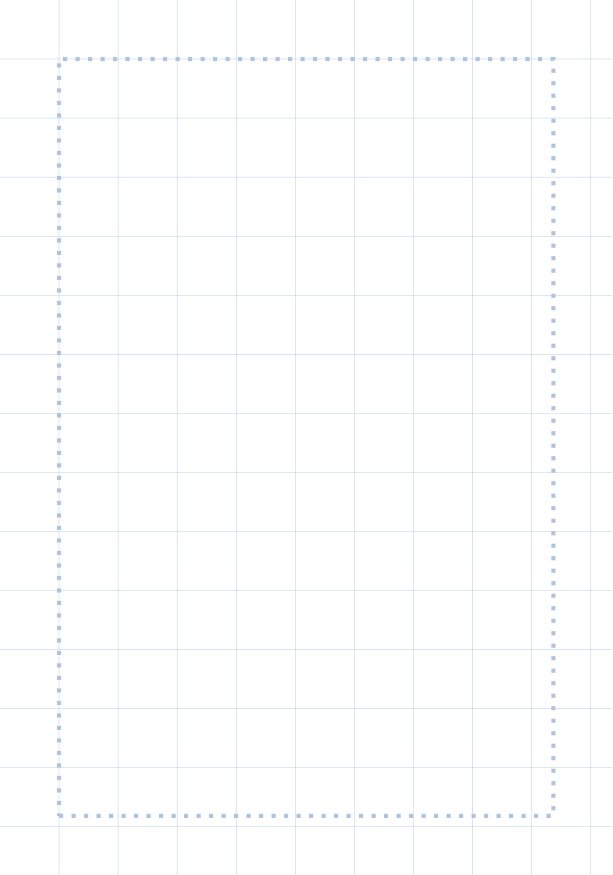
margin_debug - set to
Trueto show the margin as a dotted blue linepage_grid - if set to a number, will display a squared grid of thin horizontal and vertical lines, set a distance “unit” apart — where the distance depends on the current units
units - these can be
cm(centimetres),in(inches),mm(millimetres), orpoints; the default iscm
Example 1. Create Options
Here is an example of a customised Create command, for an A3-sized page
in landscape mode, with units of inches (in) and top and left margins
being set to 2 inches each:
Create(
    paper="A3-l",
    units="in",
    filename="testA3.pdf",
    margin_top=2,
    margin_left=2,
)
Example 2. Grid and Margin Display
|
Here is an example of a customised This type of setup is useful when working on a design but is typically not shown as part of a final product. Create(
filename="blank.pdf",
paper='A8',
margin=0.5,
page_grid=0.5,
margin_debug=True,
)
|
PageBreak Command
The PageBreak() command is only needed when you need to start a new page.
When generating a deck of cards the program will
automatically insert PageBreak() commands as needed, if the cards occupy
multiple pages.
Save Command
The Save() is usually the last to appear in a script.
The Save() command, by default, simply results in the outcome of all the
commands used to that point being written out to a PDF file; either with a
default filename, or with the one set in the Create Command .
A number of the properties below are relevant when creating a Deck of Cards
To customise the command, set its properties as follows:
output - this can be set to:
png- to create one image file per page of the PDF; by default the names of the PNG files are derived using the PDF filename, with a-followed by the page number;svg- to create one file per page of the PDF; by default the names of the SVG files are derived using the PDF filename, with a-followed by the page number;gif- to create a GIF file composed of all the PNG pages (these will be removed after the file been created)
directory - sets the location where the output will be created; the default is the directory on which the script is being run
dpi - can be set to the dots-per-inch resolution required; by default this is
300names - this can be used to provide a list of names — without an extension — for the output files that will be created from the PDF; the first name corresponds to the first page, the second name to the second and so on. Each will automatically get the correct extension added to it. If the term
Noneis used in place of a name, then that page will not have an output file created for it.cards - when set to
Truewill cause all the card fronts to be exported as PNG files; the names of the files are based on the PDF filename, with a dash (-) followed by the page number, and.pngfile extensionframerate - the delay in seconds between each “page” of a GIF image; by default this is
1secondstop - when set to
Truewill cause the script to stop at that point, after saving the file — this can be useful when you have a long script and want to verify output with adding or displaying all the elements
Example 1. Save PNG
Here is an example of a customised Save command:
Save(
    output='png',
    dpi=600,
    names=['pageOne', None, 'pageThree']
)
In this example, assuming that three pages are created by the script, no
PNG file will be created from the second page, while .png files named
pageOne.png and pageThree.png will be created from the first and
third pages of the PDF file.
Example 2. Save GIF
Here is an example of a customised Save command used to create an animated
image:
Save(
    output='gif',
    dpi=300,
    framerate=0.5
)
In this example, an animated GIF image will be created, assembled out of the
PNG images; one per page of the PDF. The framerate setting of 0.5 means
there will be a delay of a half second between the display of each image.
Example 3. Save Card Gallery
Here is an example of a customised Deck command used to create an output
file that contains many cards in a single page (and image of that page):
Deck(
    cards=108,
    gallery=(9, 6),
)

Save(
    output='png',
    dpi=300,
)
In this example, each PNG image created will contain a grid, or array, of nine cards wide (“cards per row”) by six cards high (“cards per column”) — for a total of up to 54 cards per page of the PDF.
In this case, because there are 108 cards, two PNG images will be created.
Example 4. Customise Outputs
`
Here are various examples of a customised Save command:
# 1.
Save()
# 2.
Save(directory="/tmp/test")
# 3.
Save(output="png", directory="/tmp/test")
# 4.
Save(cards=True, directory="/tmp/test")
# 5.
Save(cards=True, output="png", directory="/tmp/test")
# 6.
Save(cards=True, output="png")
The outcomes will be as follows:
The PDF for the script will be created in the directory where its being run
The PDF for the script will be created in the
/tmp/testdirectory, which must already existThe PDF for the script will be created in the
/tmp/testdirectory, which must already exist, as well as a PNG image for each page in the PDFThe PDF for the script will be created in the
/tmp/testdirectory, which must already exist, as well as a PNG image for each card in the PDF (this example assumes you are working with the Deck command)The PDF for the script will be created in the
/tmp/testdirectory, which must already exist, as well as a PNG image for each page in the PDF, and also a PNG image for each card in the PDF (this example assumes you are working with the Deck command)The PDF for the script will be created in the directory where its being run as well as a PNG image for each page in the PDF, and also a PNG image for each card in the PDF (this example assumes you are working with the Deck command)
Other Commands
Load Command
The Load() command is an alternative to the Create() command,
and should appear first in the script, instead of it.
Hint
If you omit the Create() command and the Load() command,
you should get a FEEDBACK message:
FEEDBACK:: Please ensure Create() command has been called first!
To use this command, set its properties as follows:
filename - name of the input PDF file
Note that paper_width and paper_height will be calculated from the first page loaded.
The Load() command is useful in conjunction with the
Extract command.
Shape, Grid, Deck & Card Commands
There are numerous other commands which are either used to draw shapes, or sets of shapes, or to control how and where sets of shapes appear on a page. See:
Drawing vs Assigning
All of the shape commands can either be called with a capital letter or a lowercase letter.
The use of a capital is the more common case, and it effectively tells protograf to “draw this shape now”:
Circle(stroke_width=5)
The use of a lowercase is normally when you assign a shape to a name, so that it can be used — or drawn — later on in the script:
# this circle is *not* drawn at this point of the script
clock = circle(stroke_width=5)

# the circle - aka "clock" - drawn when cards are drawn
Card("1-9", clock)
Basic Shapes
protograf allows for the creation of many shapes, with a command for each one.
These are described in the Core Shapes section, which also covers common customisation options.
More extensive customisation of some shapes is also possible; see the Customised Shapes section.
Card Decks
A common element in many games is a deck - or multiple decks - of cards. protograf also considers items such tiles or counters to be “cards”; they are really just “shapes containing other shapes”
There are two key commands for creating a deck of cards: the Card() and
the Deck(). These are discussed in detail in the
card decks section, while the options for customisation of
the deck itself are discussed in the Deck command.
A useful “getting started” approach is to look through the section with worked examples which shows an increasingly complex set of examples for setting up and running scripts to generate a deck of cards.
Layouts, Sequences, Tracks and Grids
A basic layout is that of a simple sequence, with shapes placed at regular positions in a linear direction.
A track can be defined as the borders of a rectangle or polygon shape; or at specific angles along the circumference of a circle. Shapes can then be placed at these locations.
The other way that elements can be laid out on a page is through a
grid layout which can be derived from a built-in shape such Hexagons
or constructed using a defined set of properties.
These are all described in the Layouts section.
There is also a separate section on Hexagonal Grids which describes the variety of these types of grids, as well as some options for adding shapes to them.
The FEEDBACK Message
Normally, a script will run without you seeing anything. However, there are some occasions when you will see feedback or warning message of some kind.
An error happens - this is described further in the section on making mistakes
Generating Images from Save() - this will show a message like:
FEEDBACK:: Saving page(s) from "/tmp/test.pdf" as PNG image file(s)...
Accessing BGG - you can enable progress when using the BGG() command, to retrieve boardgame information, as follows:
# progress is True - games retrieval is shown
BGG(ids=[1,2,4], progress=True)
In this case you will see messages like:
FEEDBACK:: Retrieving game '1' from BoardGameGeek...
An empty Layout - this is just a warning issued because the
Layout()has no shapes allocated for it to draw:rect = RectangularLayout(cols=3, rows=4) Layout(rect)
then you will see a message like:
WARNING:: There is no list of shapes to draw!
This is not an error, but does act as a reminder about what might still be needed.
Making Mistakes
It is, unfortunately, all too easy to make mistakes while writing scripts. Some common types of mistakes are listed below — these are in no way meant to be comprehensive!
Supplying the script an incorrect value, for example, giving the
location a value of 3.0 when you meant to give it 0.3; this kind
of mistake can usually be detected when you look at the PDF, although it
may not be immediately obvious exactly what has happened.
Supplying the script an incorrect kind of value, for example, giving
the y location a value of a instead of a number. The script will
stop at this point and give you a feedback message:
FEEDBACK:: The "a" is not a valid float number!
FEEDBACK:: Could not continue with script.
Supplying the script a property that does not exist, for example,
using u=2.0 when you meant to say y=2.0. This can happen
because those two letters are located right next to each other on a
keyboard and the letters are a little similar. In this case, the script will
“fail silently” because properties that don’t exist are simply ignored.
This kind of mistake is much harder to spot; often because the default value
will then be used instead and it will seem as though the script is just
drawing something incorrectly.
Supplying the script with a duplicate property, for example:
display = hexagon(stroke="black", fill="white", height=2, stroke=2)
                                                          ^^^^^^^^
SyntaxError: keyword argument repeated: stroke
This kind of mistake is usually easier to see as both keywords, in this
case, are part of the same command and the error message that you see also
highlights the repetition with the ^^^^^^^^ characters.
Hint
Errors are discussed further in the Script Errors section.
Comments
↑
It can be useful to “annotate” a script with other details that can remind you, as a reader, about any of the “what” or “why” aspects of the script.
These comments are effectively ignored by Python and protograf and have no effect on the output.
Single Line Comments
Simply insert a
#, followed by space, at the start of the comment line:Multiple Line Comments
Use a pair of triple-quotes to surround all the lines of comments:
Make sure the triple quotes appear at the start of the lines in which they are used.