Additional Commands
This section deals with some of the additional commands available in protograf that are not covered in detail elsewhere.
You should already be familiar with all of the Basic Concepts, and have created some basic scripts of your own using the Core Shapes.
Common Command
The Common() command allows different shapes to use exactly the same
properties.
These properties are listed in much the same way as they would for an actual
shape, but the Common() command does not actually draw anything itself.
For example:
colors = Common(stroke="tomato", fill="gold")
Circle(common=colors, cx=1, cy=2)
Square(common=colors, cx=2, cy=2)
Here the circle and the square will both use the common properties that
have been assigned to the colors name.
Note
The common properties cannot be overwritten by a shape; if set, they will be used and cannot be changed on a case-by-case basis! If you want to be able to do such overwrites, rather use the Default Command.
Default Command
The Default() command allows different shapes to potentially all share
the same properties.
These properties are listed in much the same way as they would for an actual
shape, but the Default() command does not actually draw anything itself.
Note
Unlike the Common() command, the common properties set by the
Default() command will be overwritten by any of the same
ones which are set by the shape itself!
For a shape to make use of properties set by a Default() command, the shape
must assign the name given to the Default() to its default property.
For example:
|
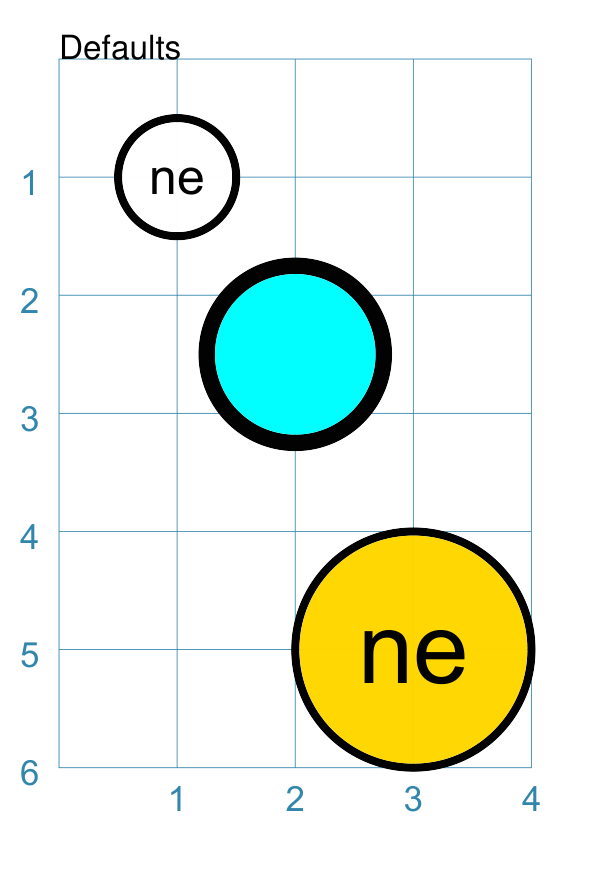
This example shows setting and using defaults for shapes. def1 = Default(
radius=0.75, fill="gold", stroke_width=4)
def2 = Default(
label="ne", label_size=24, stroke_width=2)
Circle(
default=def2,
cx=1, cy=1, label_size=12)
Circle(
default=def1,
cx=2, cy=2.5, fill="aqua")
Circle(
default=[def1, def2],
cx=3, cy=5, radius=1)
Here the various circles make use of the The top circle makes use of properties assigned to The middle circle makes use of properties assigned to The bottom circle makes use of properties assigned to both of the
Note that the order, when using multiple Defaults, is important.
Its clear in the bottom circle that |
Font Command
Note
There is a section with much more in-depth discussion on the use of fonts which could be helpful, especially if you have problems…
The Font() command will change the default font in use from that point
forward in the script.
Usually, the font’s properties will be set at the time that a Text()
command is issued, and multiple Text() commands can obviously use the
Common Command to avoid duplication, but it can sometimes be useful
to set the font properties more widely, especially where locating or
setting up the font
The following properties are available for the command:
name - the name of the font face
size - the font “height” in points
stroke - the font color; either a built-in color or a hexadecimal value
If you need to use a specific style name that differs from the default style,
for example italic or bold, you will need to refer to that font by its
name, for example Arial-Bold.
Because the name is compulsory, its often omitted from the command.
Example 1. Common Fonts
|
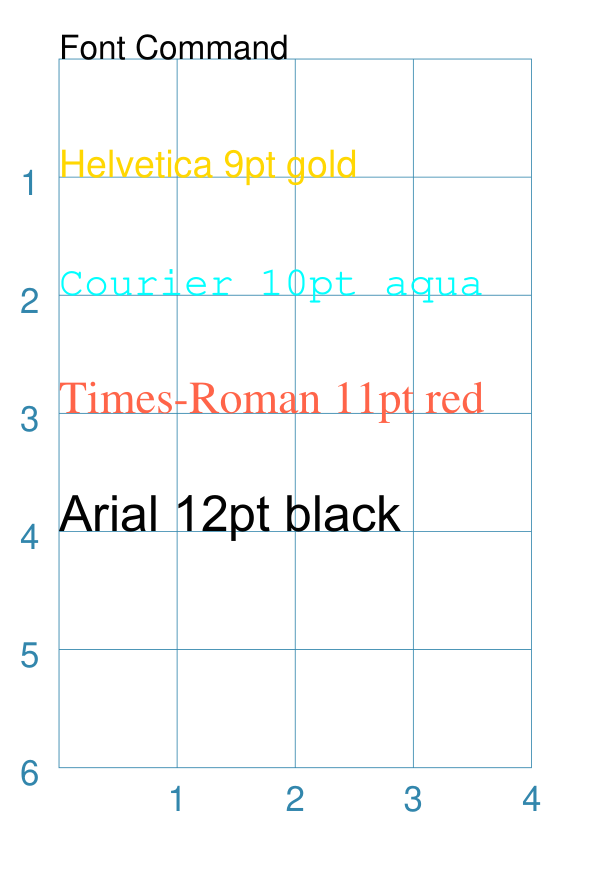
This example shows the use of the command with different properties: Font("Helvetica", size=9, stroke="gold")
Text(text="Helvetica 9pt gold",
x=0, y=1, align="left")
Font("Courier", size=10, stroke="cyan")
Text(text="Courier 10pt aqua",
x=0, y=2, align="left")
Font("Times-Roman", size=11, stroke="tomato")
Text(text="Times-Roman 11pt red",
x=0, y=3, align="left")
Font("Arial", size=12, stroke="black")
Text(text="Arial 12pt black",
x=0, y=4, align="left")
The first three are examples of the standard fonts available to a PDF. Standard fonts can be safely used anywhere that protograf can be run. The fourth font is a custom one that would need to first be installed onto the machine where the script is to be run. Important The first time that any custom font is used, in any of your scripts, will trigger a “discovery” process whereby all fonts are catalogued. This will cause a long delay — however, after that the catalogue details are stored in a single file. This can be used directly and quickly, so after that your scripts will not have the delay. In each example, the name of the font appears first, followed by any further details as to its properties. |
Extract Command
The Extract() command allows portions of pages to be extracted as PNG
images.
While it is possible to do this with third-party apps or tools, any manual approach can be a bit tiresome if it needs to be continually repeated!
Specifying which page, or pages, are affected, along with the portions required, will automatically create these images after the final PDF is produced by protograf.
There are a number of properties that can be assigned to an Extract.
The first must always be the page, or pages, where the extraction must happen.
These can be specified as text e.g.: "42", "2-4", or "3-5,7,9",
or in a list form e.g.: [42], [2, 3, 4], or [3, 4, 5, 7, 9].
The following properties can be used to specify what part of the page must be extracted:
cols_rows: two numbers - either comma-separated in text or in a list e.g.
"3,4"or[5, 6]. The first number is how many columns the page should be divided into and the second number is how many rows the page should be divided into. So a “2,2”` value divides the page into quarters.areas - this is a list of sets of numbers, with four numbers in each set. The set numbers represent the top-left x and y and the bottom-right x and y locations on the page of a rectangle that must be extracted e.g.
[(1, 1, 5, 5), (2, 2, 6, 7)]will extract two rectangular images — the first being 4cm in height and width and starting 1cm away from the top and left of the page, and the second being 4cm width by 5cm in height and starting 2cm away from the top and left of the pagewidth and height - together with x and y these specify a rectangular area of a page; when used with
repeat=Truethis area will be repeatedly extracted for as many times as the area fits into the page in terms of its width across and height down.
Note
Areas are always relative to the edges of the page; they do not make use of any page margins. Similarly cols_rows always divide up the whole page, ignoring any page margins. The x and y values also ignore any page margins
Warning
Do NOT use different extraction types in the same command!
A cols_rows example:
Extract("1-3" , cols_rows='2,2')
An areas example:
Extract("2,4,6", areas=[(1, 1, 5, 5), (2, 2, 6, 7)])
A width and height example:
Extract("2,4-6", width=6.5, height=9, x=1.25, y=1.25, repeat=True)
By default, the images are named after the PDF file being created, along with
a -N suffix, where N is the page number, and then a -M where M is the
sequence number of the image. For example, the fourth image on the third page
extracted from a file called demo.pdf would be called demo-3-4.png.
There is also an optional names property that can be used to specify names for the images. This is just a list of text values. If the list is not long enough for all the images, the naming will revert back to the default approach.
For example:
Extract(
    "1-3" ,
    cols_rows='2,2',
    names=[
        'top-left-quarter',
        'bottom-left-quarter',
        'top-right-quarter',
        'bottom-right-quarter',
    ]
)
This extract will create images named top-left-quarter.png,
bottom-left-quarter.png, top-right-quarter.png, and
bottom-right-quarter.png.
The extract order for cols_rows will process each column in turn, followed by all the rows in that column.
Hint
It is possible to have multiple Extract() commands in a script;
so different areas and/or cols_rows and/or width/height
rectangles can be extracted from the same page or pages.
Random Command
The Random() command allows the generation of numbers within a range.
Random()
will randomly generate a decimal number in the range to 0 to 1, rounded to 2 decimal places.
Random(10)
will randomly generate a decimal number in the range to 1 to 10, rounded to 2 decimal places.
Random(10, 20, 3)
will randomly generate a number in the range to 20 to 30, rounded to 3 decimal places. The second number is added to the range of random numbers generated in the range to 1 to 10
Today Command
The Today() command will insert text with the current date and/or time.
Varying date formats can be used. Two properties are available:
details - this can be one of:
date,datetime,time,year,monthorday`.style - this can be
usaoreur; if not provided thenISOdate style is used — see the"1."example below.
Example 1. Common Usage
|
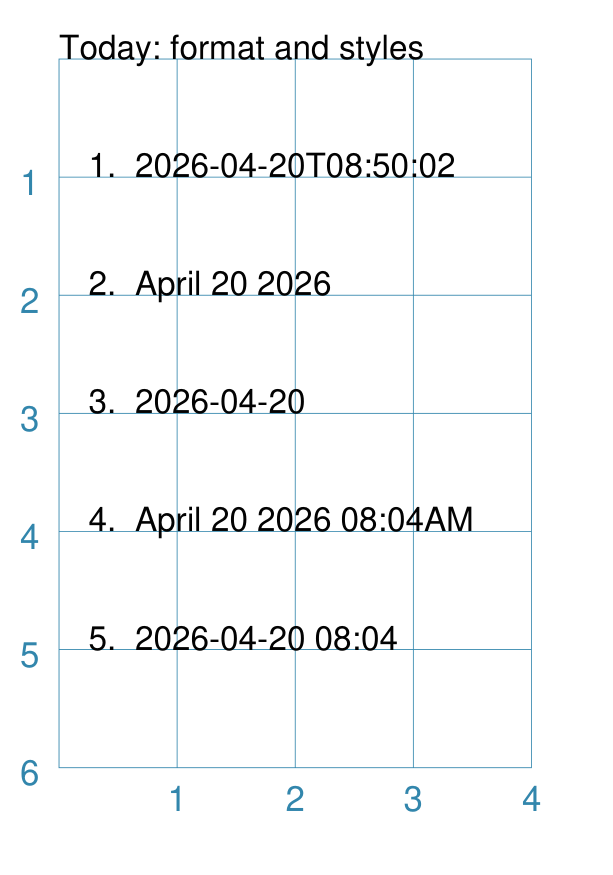
This example shows the use of the command with different details and style - the first example just uses defaults. dtext = Common(x=0.25, align="left", font_size=8)
Text(
common=dtext, y=1,
text="1. "+Today())
Text(
common=dtext, y=2,
text="2. "+Today(details="date", style="usa"))
Text(
common=dtext, y=3,
text="3. "+Today(details="date", style="eur"))
Text(
common=dtext, y=4,
text="4. "+Today(details="datetime", style="usa"))
Text(
common=dtext, y=5,
stroke=red,
text="5. "+Today(details="datetime", style="eur"))
Because the output of the |
BGG Command
The BGG() command is designed to retrieve board game data from the BoardGameGeek (BGG) database, via its API, and provide that data in a form suitable for use in Card Decks.
Examples of using BGG API data for card creation can be found at BGG Examples.
Important
Note that access to the BGG API can only be used in terms of its license: https://boardgamegeek.com/wiki/page/XML_API_Terms_of_Use
Access to the BGG API requires that you apply to the site and request permission; when granted, this will allow you to generate a token — a long, unique, set of characters and numbers that look something like
48398139-7fb1-4809-b7af-0be28d35dcec— for details see https://boardgamegeek.com/application/Furthermore, there is an upper limit to how many games can be retrieved at a time — best available knowledge suggests this is about 15,000.
Copies are kept of data downloaded from BGG — and this data will not be re-retrieved from BGG unless you delete those copies; see Caching below.
Usage
The BGG command allows game data to be retrieved either by providing:
a comma-delimited list — in square brackets from
[to]— of game IDsthe ID of a BoardGameGeek user; by default all games in that user’s collection will be retrieved, unless filters are used
In both cases, you will also need to supply your BGG API token.
The ID of a game appears in its URL; so, for example, the ID for the boardgame
“Monopoly” is 1406 and is found at https://boardgamegeek.com/boardgame/1406
Example 1. Games by ID
To retrieve games which have known IDs, create a list of those numbers, using square brackets; for example, for ID’s 1, 2 and 3: :
BGG(token="ABC123", ids=[1, 2, 3])
When the command runs, you will get the following feedback:
FEEDBACK:: All board game data accessed via this tool is owned by
BoardGameGeek and provided through their XML API
If you add the progress property, you will get feedback on the process as it runs, showing that each game is being processed i.e.
BGG(token="ABC123", ids=[1, 2, 3], progress=True)
shows:
FEEDBACK:: Retrieving game '1' from BoardGameGeek...
FEEDBACK:: Retrieving game '2' from BoardGameGeek...
FEEDBACK:: Retrieving game '3' from BoardGameGeek...
Example 2. Games for a BGG User
To retrieve games for an (imaginary) user with the username BenKenobi1976:
BGG(token="ABC123", user='BenKenobi1976')
A collection can be very large; you may want to filter it to create a Subset of Games.
Caching
Caching is the process of storing a copy of something — usually a file, an image or some other kind of data — so that it does not have to be retrieved again. This is useful when accessing resources from the internet, as it saves time and bandwidth.
In the case of BoardGameGeek data, copies of the game data and images are stored under your user directory on your local machine (or where ever you are running protograf).
The caching directory is called .protograf and this will have a bgg
subdirectory where game data — in the form of .pck files and
images and thumbs — are stored. If you delete these folders and
files, they will be recreated the next time your script runs
i.e. all of their data will need to be downloaded again.
Output Fields
The results of a successful command, that returns one or more games, includes data for the following fields:
AVERAGEWEIGHT ~
BAYESAVERAGE ~
BGG ~
CATEGORIES ~
DESCRIPTION ~
DESCRIPTION_SHORT ~
DESIGNERS ~
DISPLAY ~
EXPANDS ~
EXPANSION ~
EXPANSIONS ~
FAMILIES ~
ID ~
IMAGE ~
IMPLEMENTATIONS ~
MAXPLAYERS ~
MECHANICS ~
MEDIAN ~
MINAGE ~
MINPLAYERS ~
NAME ~
NUMCOMMENTS ~
NUMWEIGHTS ~
OWNED ~
PLAYERS ~
PLAYINGTIME ~
PROPERTIES ~
PUBLISHERS ~
RANKS ~
SHORT ~
STDDEV ~
THUMBNAIL ~
TRADING ~
USERSRATED ~
WANTING ~
WISHING ~
YEARPUBLISHED ~
Hint
This program’s developer was not able to find an authoritative set of descriptions for these fields; but they do seem mostly self-obvious, assuming you have made use of BoardGameGeek’s database to manage your game collection.
If you retrieve data for a user’s collection, there will also be an additional set of fields, with data specific to that user:
USER_GAME ~
USER_OWN ~
USER_PREORDERED ~
USER_PREVOWNED ~
USER_RATING ~
USER_WANT ~
USER_WANTTOBUY ~
USER_WANTTOPLAY ~
USER_WISHLIST ~
USER_WISHLISTPRIORITY ~
Subset of Games
You can retrieve a subset of games for a user by providing one or more items to filter their collection on.
These are added as extra properties to the BGG() command. For example:
bgames = BGG(
    token="ABC123",
    user="BenKenobi1976",
    want_to_play=True,
    own=True,
)
In this example, games must be marked both as “want to play” items and
items that are “own”ed in the collection of the (totally imaginary) user
called BenKenobi1976.
Hint
A user’s entire collection is retrieved at once — so there is no “progress” option available!
The full list of property filters that can be used, when accessing a user’s collection, are:
own - include (if
True) or exclude (ifFalse) owned itemsrated - include (if
True) or exclude (ifFalse) rated itemsplayed - include (if
True) or exclude (ifFalse) played itemscommented - include (if
True) or exclude (ifFalse) items commented ontrade - include (if
True) or exclude (ifFalse) items for tradewant - include (if
True) or exclude (ifFalse) items wanted in tradewishlist - include (if
True) or exclude (ifFalse) items in the wishlistpreordered - include (if
True) or exclude (ifFalse) preordered itemswant_to_play - include (if
True) or exclude (ifFalse) items wanting to playwant_to_buy - include (if
True) or exclude (ifFalse) items wanting to buyprev_owned - include (if
True) or exclude (ifFalse) previously owned itemshas_parts - include (if
True) or exclude (ifFalse) items for which there is a comment in the “Has parts” fieldwant_parts - include (if
True) or exclude (ifFalse) items for which there is a comment in the “Want parts” field