Counters
These examples are meant to demonstrate the type of output you can expect to create with protograf. They are not meant to be exhaustive or comprehensive!
Bear in mind that the images shown in these examples are lower-resolution screenshots; the original PDFs that can be generated from the source scripts will demonstrate full scalability.
Wargame - Basic Counters
Title |
Basic Wargame Counters |
Script |
|
Discussion |
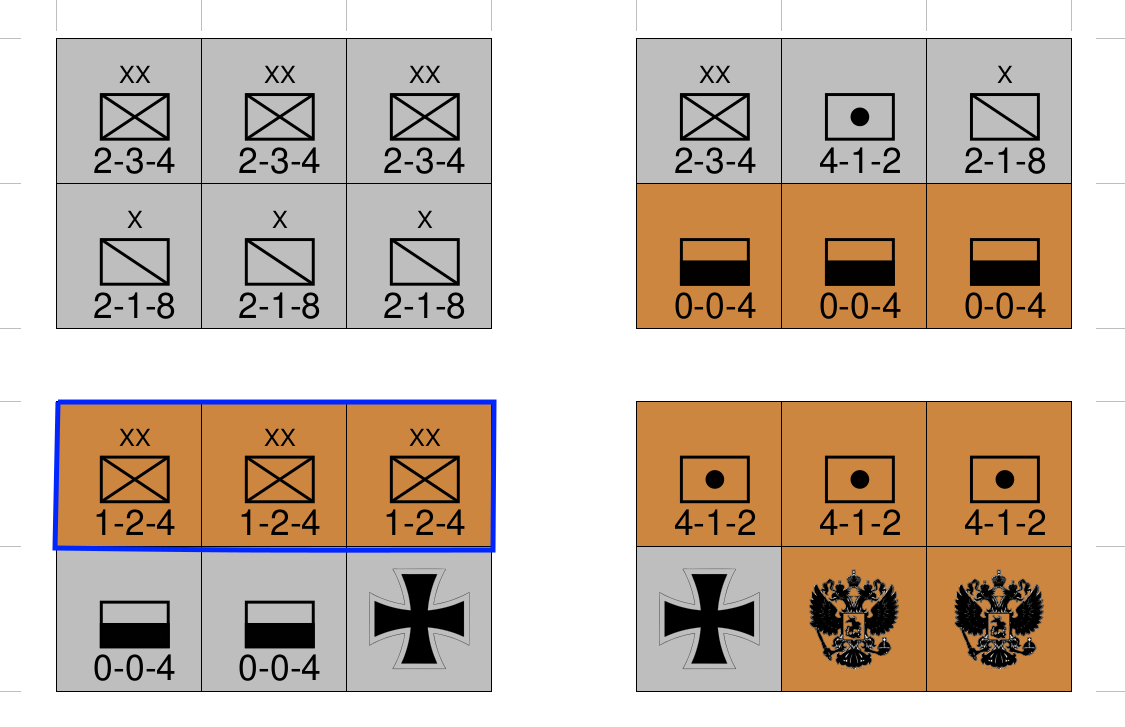
This example shows how to construct a set of counters. The “placeholder” for the counters is the
The layouts for the counters are constructed from a series of a basic shapes. Intermediate steps are stored via assigned names; this allows them to be reused in different places, for different counters that share common elements. Remember that using lowercase names for the shape commands means that they will not be drawn immediately, but only when the card itself is drawn. Following is “walkthrough” on how some (not all) of the counters from this example are created. First, the shapes forming the conventional symbol for an infantry unit (‘X’ in a box) are assigned names and then combined with a group function:
Then text and color (for one of the country’s armies) are defined:
Now the counter outline is defined:
And finally the complete counter itself is defined in a two step process, also using the group function to combine different, previously-defined elements:
Finally, the counter, or counters, can be drawn in one or more positions on the countersheet:
These counters are shown outlined in blue in the screenshot. Note that the blue line was not created as part of the script but just added in with a graphics editor. Bear in mind that counters are drawn in order, starting from the top-left, then moving across to the right to complete a row, then moving down to the next row - so in this example, counters 1 to 6 are drawn along the top row — in two groups of 3 each — followed by 7 to 12 on the next row down, and so on. |
Screenshot |
|
Wargame - Counters from CSV
Title |
Wargame Counters from a CSV file |
Script |
|
Discussion |
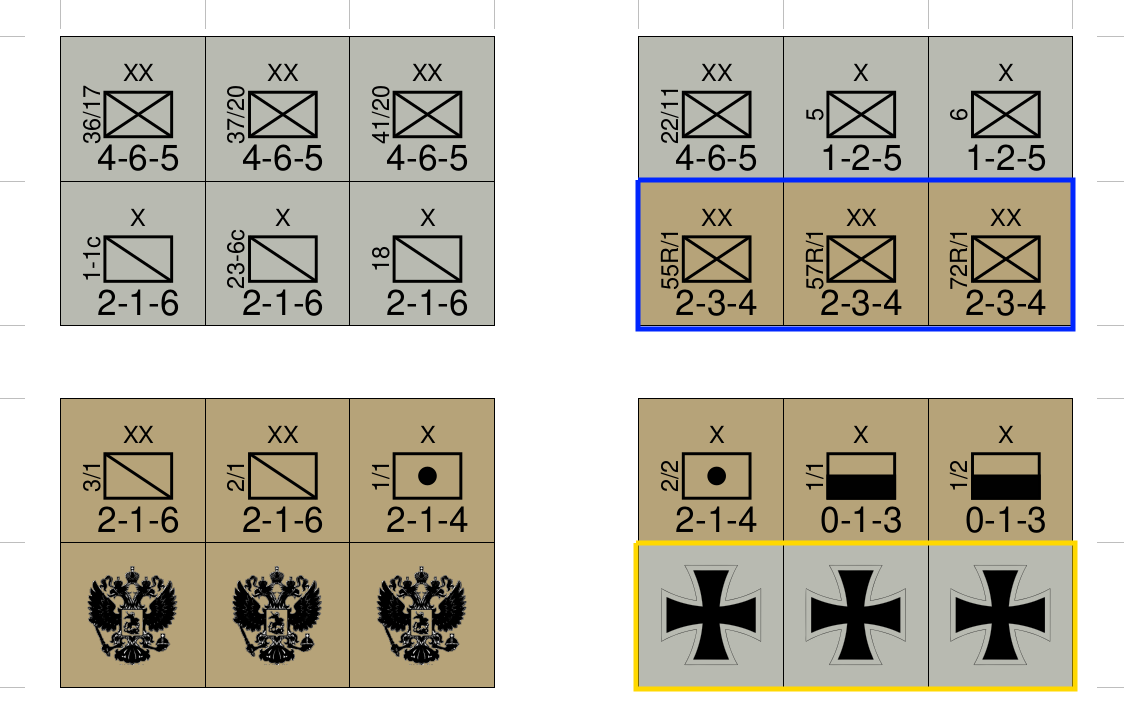
This example shows how to construct a set of counters using data from a plain text CSV (comma-separated values) file. The CSV file contains data such as: NATION,TYPE,SIZE,VALUE,ID
...
rus,INF,XX,2-3-4,55R/1
rus,INF,XX,2-3-4,57R/1
rus,INF,XX,2-3-4,72R/1
...
ger,MARKER,,,
ger,MARKER,,,
The data is loaded into the script via the
Using this command means that the number of counters in the
In general, every line in the file corresponds to a counter that will be drawn, and defines key values that will determine how that counter will be drawn. Elements that should appear on a counter, and whose values or settings should be derived from data in the file, can now refer to the headings appearing at the start of the file; for example:
Here the text that will be used depends on data in the ID
column. This can be accessed by the When this is referenced by a Counter in the script:
It is possible to do conditional assignment using an
Here, the
Note that both examples ensure that the case (upper or lower) is being matched correctly. An example of this is last two rows from the snippet of CSV shown above. The resulting counters are outlined in yellow in the screenshot. |
Screenshot |
|
Wargame - Counters from Excel
Title |
Wargame Counters from an Excel file |
Script |
|
Discussion |
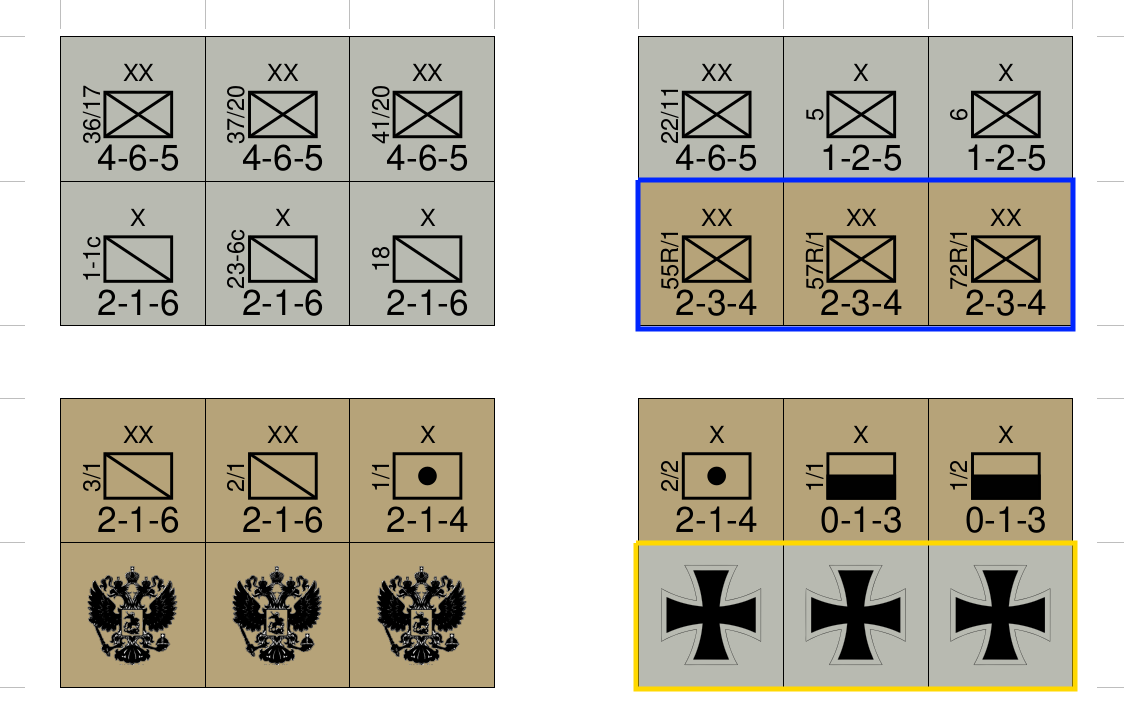
This example shows how to construct a set of counters using data from an Excel file (“.xls” format). This example is effectively exactly the same as the ones above, with the only difference being the data source file:
Hint It is possible - maybe even preferable! - to use a font for common/standard military unit icons; see, for example, the JZNATO v11 font available from: https://github.com/jzedwards/jzfonts |
Screenshot |
|
Wargame - Blocks from CSV
Title |
Wargame Block Labels from a CSV file |
Script |
|
Discussion |
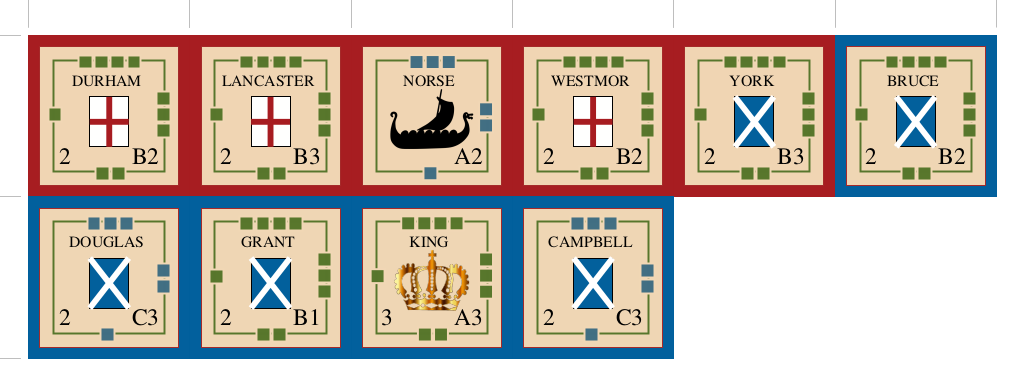
This example shows how to construct a set of labels, designed to be attached to small wooden blocks, using data from a plain text CSV (comma-separated values) file. The same basic approach that is described in previous examples applies here. The CSV looks like: SIDE,TITLE,MOVE,STRENGTH,DOTS,SHIELD,BORDER,IMAGE
English,DURHAM,2,B2,4,red,#57762C,
...
English,NORSE, ,A2,3,1,#416E83,viking.png
Of interest, is that second-last column in each row defines a hexadecimal color (see colors) which can used, for example, via:
As described previously, the These counters can also contain images, for example:
This references the last column, called IMAGE of the CSV. If the column is empty, then no image is drawn. Another item of interest is the use of the
Because its known that a counter/label always has a set of
sequences that proceed, with decreasing length, in clockwise order,
its possible to use |
Screenshot |
|
Wargame - Counters from Excel - Commercial
Title |
Commercial Wargame Counters with data in an Excel file |
Script |
|
Data |
|
Discussion |
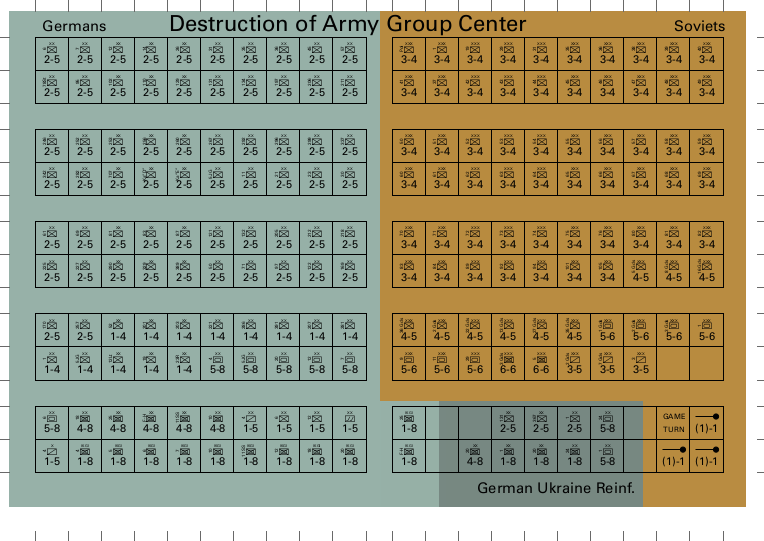
This example shows how to construct a set of counters using data from an Excel file (“.xlsx” format). This example is similar the same as the ones that use Excel as a data source:
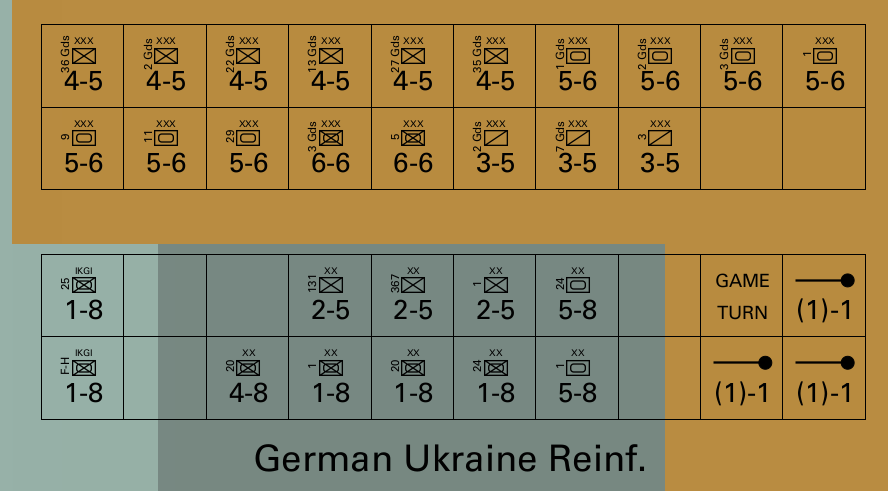
Here, the full counter sheet for a commercial game, published by SPI in 1973 — Destruction of Army Group Center — has been reproduced. It makes use of the JZNATO font available from: https://github.com/jzedwards/jzfonts to display common/standard military unit icons, and the Univers LT Std font from https://www.cdnfonts.com/univers-lt-std.font to display text. In addition to this, the example also shows how to use zones
property of the Note that while the counters here are outlined in black for ease of viewing, in practice these outlines would be turned off as the cut marks visible around the edge of the page are the preferred method for enabling cutting out a prototype. |
Screenshot |
|
Zoom-In |
|