Working with Cards
This section assumes you are very familiar with the basic concepts, terms and ideas for protograf as presented in the Basic Concepts , that you understand all of the Additional Concepts and that you’ve created some basic scripts of your own using the Core Shapes.
Note
This section is a high-level overview; all the key details, along with supporting examples can be found in the Card Decks section. Further useful information is in the Cards: Images, Icons and Font section.
Background
Cards are a common and widely used method of storing and displaying small sets of related data.
Scientists have used index cards since the 17th century and, of course, libraries have long-used card catalogues as a way to track information about books. Businesses in the 20th century used Rolodexes and business cards as means to track and exchange information about individuals. Early computers used perforated cards called “punch” cards to store their data. In gaming, playing cards have been popular both in China and Europe, coming into more widespread use somewhere in the 9th and 14th centuries respectively.
The massive rise in popularity of a card game like Magic the Gathering, from the early 1990s onwards, has inspired the much greater use of cards in all aspects of the modern board gaming experience, with cards or tiles taking a predominant role in many of them.
The Card Development Process
The aim of prototyping is to encapsulate a simple but effective representation of the ideas for your cards into a viable design.
The heart of the design process for prototyping cards are three steps:
define what “things” you want to appear on the cards
define where you want those “things” to appear
define how you want those “things” to look
You probably will iterate — repeat — those steps a number of times, adding and adjusting until you are satisfied with the result.
In brief; the “things” for your cards are typically text, along with the names
of icons and images, stored in a CSV file or spreadsheet; while in your script
the Card() command is used, multiple times, to provide the “glue” needed to
position the elements — shapes, text and images — containing or
referring to those “things”.
A complete script with all commands, is what some software calls a “template” for your cards.
Hint
There is a card creation script to help set up a basic template for your cards, based on a series of choices you make — refer to the Available Scripts section. It includes some of the commands and ideas described further below and which are also illustrated in “A Simple Deck, Card & Data Example”.
Key Concepts and Commands
Unlike the case where you specify where to locate elements on a single page, here protograf will handle the flow of placing cards onto multiple pages, based on the cards’ size and the size of the paper chosen.
In your script, for one or more cards, you will set out the elements exactly as you want them to appear — in effect, the card becomes a “mini page”.
This is important — defining something often means it is not needed right away but only when the card, or cards, that use it are drawn. See the related detail in the Card Command section below.
Hint
Be aware that when defining elements, such as shapes, that are not needed immediately, you MUST use the lowercase version of the command name; refer to the section on case sensitivity
There are two core commands needed; the Deck() and the Card(); with
supporting commands including the Data() and Matrix() commands.
Deck Command
A Deck() command is used, once per script, to set up the framework
needed for creating one or more cards.
Using its properties, you can specify aspects such type, size and the expected number of cards, as well as any spacing and color swathes between them, that will be used to create the “frames”, or placeholders, that are used for each and all of the cards in the deck.
All of these properties have defaults; for example, the default card size is that of a Poker card, and the default number of cards is 9 — the number that will fit onto one A4-sized page with default margins.
For full details on how to configure a Deck, see the section on the
Deck Command.
Card Command
A Card() command is used, usually many times per script, to specify
part of the design for a card, or a range of cards, in a deck.
A card design typically makes use of various shapes and text elements — some of which may have already been defined elsewhere in the script — to both position and style the card’s data.
Hint
In many cases when defining what appears on a card — shapes, images or text — you should generally employ commands with a lowercase initial as this means the command will be not carried out straightaway, but deferred for activation later on in the script when the cards themselves are drawn.
Elements can be used (or re-used) for single or multiple cards.
Note
protograf also considers items such tiles or counters to be “cards” as they are really just “shapes containing other shapes”. See Countersheet and Counter Commands.
The Card() command also supports using a reference to a
Python function which you have created, that can be
used to generate one or more shapes to be drawn on the card, based on value(s)
from that card’s data record. This is useful when you require more complex
logic to draw shapes; refer to Card functions.
For full details on how to work with a Card, see the section on the
Card Command.
Data Command
In many cases, the Data() command will be needed in order to provide
settings for the properties of the elements appearing on a card. This can
be text, but can also be the names of icons, or images filenames, or the
names of colors to be used to draw shapes, in the Card() designs.
The source of the data can be from places such as: an Excel or CSV file; or a Google sheet. Data can also be stored directly in the script.
All such data is column-based data; the names of the columns will be cross- referenced by the cards; and each data record (the “row of a spreadsheet”) effectively correponds to one card of your prototype deck.
Data can also be sub-setted by using some simple filter options.
For full details on how to work with Data, see the section on the
Data Command.
Matrix Command
In some cases, the Matrix() command will be needed. This is an alternate
method of creating repetitive data for the properties of the elements appearing
on a card.
For full details, see the section on the Matrix Command.
Images, Symbols and Fonts
Many cards require the addition of graphics of some type — artwork as well as symbols. protograf supports the display of those through the use of various commands, as well as the properties and special capabilities of those commands.
For full details, see the section on Cards: Images, Symbols and Fonts
Supporting Commands
The following commands are helpful in terms of increased flexibility and reduced repetition when designing a deck of cards.
The
group()function provides a “shortcut” way to reference a set of shapes that all need to be drawn together.The
T()(Template) command allows a reference to some data — for example, the cell in the named column of a spreadsheet — to be substituted by its actual value when the card gets created.The
S()(Selection) command causes a shape to be added to a card, or set of cards, for a matching condition.The
L()(Lookup) command enables the current Card to retrieve data from a named column corresponding to another Card based on the value of a named column in the current Card (whew!).
A Simple Deck, Card & Data Example
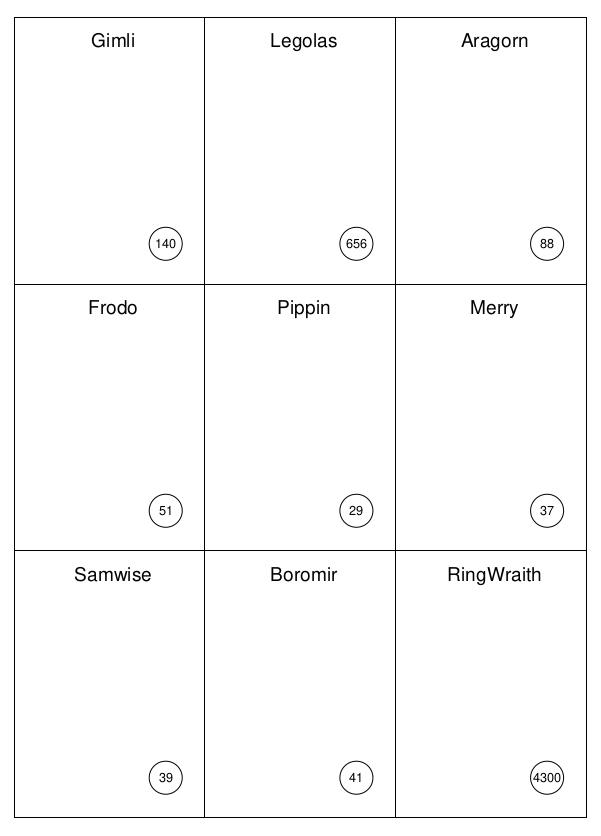
This script shows a simple script that displays a few cards using some of the commands discussed briefly above. A “real” script will obviously be longer and more complex, but the basic flow is likely to be similar and will need to contain the key commands in the order shown:
Create()- setup the scriptData()- link to the source of data usedDeck()- define the common card structureCard()- multiple uses define exactly the “what and where”Save()- generate the PDF (and optional PNG card images)
Note that the data for these cards is embedded in the script; this dataset
looks similar to a CSV file, but each row of data is “wrapped” in square
brackets with a comma at the end: [...],
from protograf import *
Create()
card_data = [
    ['ID', 'Name', 'Age', 'Color'],
    [1, "Gimli", 140, "tan"],
    [2, "Legolas", 656, "green"],
    [3, "Aragorn", 88, "pink"],
    [4, "Frodo", 51, "orange"],
    [5, "Pippin", 29, "orange"],
    [6, "Merry", 37, "orange"],
    [7, "Samwise", 39, "orange"],
    [8, "Boromir", 41, "pink"],
    [9, "RingWraith", 4300, "gray"],
]
Data(data_list=card_data)
Deck()
Card("all",
     circle(x=4.5, y=7, radius=0.55, label=T("{{ Age }}")))
Card("all",
     text(text=T("{{ Name }}"), x=3.3, y=1, font_size=18))
Save()
The output looks like:
Countersheet and Counter Commands
The Countersheet() and Counter() commands are effectively “wrappers”
around, respectively, the Deck and Card commands so that all of the properties
and abilities of those commands can be used via these instead.
The only real difference is that the default size of a Counter is 1”
square (i.e. 2.54 cm x 2.54 cm) versus that of a Card —
6.35 cm x 8.89 cm, or 2.5” x 3.5”. On Letter-sized paper, this will result
in a default of 70 counters. You can see this with a short script:
from protograf import *
Create(filename="counters.pdf", paper="letter")
CounterSheet()
Save()
Other Card Deck Programs
protograf is by no means the only tool for creating decks of cards. Numerous other options exist, both free and commercial. Some of the free / open-source ones are listed below.
Note that inclusion of these tools does not constitute a recommendation of them or their use!
Title |
O/S |
Language |
URL |
|---|---|---|---|
Batch Card Maker |
Multi |
Python |
|
Card Creatr Studio |
Multi |
Electron |
|
Card Editor |
Windows |
Java |
|
CardFoldr |
Multi |
JavaScript |
|
CardMaker |
Multi |
C# |
|
DeCard64 |
Windows |
Delphi |
|
Forge of Cards |
Online |
JavaScript |
|
Martin’s Card Prototyper |
Online |
JavaScript |
|
Make Board Games |
Online |
JavaScript |
|
NanDeck |
Windows |
? |
|
Paperize |
Online |
JavaScript |
|
Strange Eons |
Multi |
Java |
|
Squib |
Multi |
Ruby |